MenuList
Feature overviewSee the complete MenuList system.

Start

Menu importStart from the menu you already have.Menu content prepDescriptions, images, and languages prepared for review.Featured ChoicesGuide customers to popular, quick, and value choices.

Publish

Official Business PageOne customer link for public business details.QR menu and linksShare the current approved menu everywhere.Print-ready kitTemplates, editor, QR, and printer files.

Operate

Owner PWA dashboardCore owner workflows from phone or PWA.Business HealthKnow what needs attention.Customer feedback loopPrivate issue reports from public views.Public discoveryA clearer source for search and answer systems.
Start from one approved sourceThese features work together so customers keep reaching the current menu, page, QR, and public link.
Upload current menu
How it worksMulti-locationPricing
Resources
Menu EngineeringQR Menu GuideDigital Menu vs PDFGoogle Menu GuideRestaurant Menu SEOAI Search & Menu DiscoveryOfficial Menu SourceAll Resources
LoginUpload your menu →

Print-ready kit

Put your current menu where customers look.

Choose a finished template, customize supported copy or layout when needed, and download table cards, counter cards, stickers, posters, feedback QR, menu PDFs, images, and printer handoff files from the same owner-approved menu source.

Upload your menu →See all features
AssetsTemplates and editor ready

Pick a template, customize safely, download the file

MenuList fills the business name, logo when available, brand color, QR, short link, and current menu source into supported templates. Owners can open the editor for practical changes without rebuilding the file from a blank canvas.

Choose templatePick a finished template family.
ClassicModernUtility
Editor previewPDF or image
Table tent and cardSame QR
QR filesPDF/imagePrint handoff
Template listEditor previewPDF or image
Asset typesTemplate familiesQR filesPDF/imagePrint handoff

Placement journey

From published menu to placed materials.

This deserves a dedicated page because SMB owners need practical files they can choose, preview, download, and hand to staff or a local printer.

Pick assetChoose what needs to be printed or shared.Choose templatePick a finished template family.PreviewReview generated output before saving.PlaceMove the official source into customer touchpoints.

Real-world assets

Choose table, counter, entrance, feedback, or menu files.

The Assets workspace starts with practical owner choices: what needs to sit on a table, counter, door, receipt stand, or printer packet.

TableCounterPoster

Table tent and card

Customers can scan from the table and reach the current menu.

Counter and entrance files

Stickers and posters help customers find the same current menu before they ask staff.

Feedback and menu files

Feedback QR and printable menu outputs stay attached to the approved source.
Template choice

Give owners real choice without starting from scratch.

Supported asset types show finished template families first. Owners pick a look, MenuList fills the content, and the editor stays available for practical adjustments.

ClassicModernUtility

Up to nine template families

QR and display assets can show the governed style catalog with materially different looks.

Only real choices shown

If an asset has fewer unique layouts, MenuList shows only the supported templates that produce different output.

Editor only when needed

Business identity, QR, and output sizing are handled by the system, while supported details remain editable.

Download confidence

Preview or adjust the selected template before download.

Owners see the generated visual first, then either download it or open the editor for supported copy and layout changes.

PreviewPDFImage

Image-first preview

The template view shows the selected asset output without browser PDF clutter.

PDF or image downloads

Single printable assets can be downloaded as PDF or image from the same selected template.

Editor-backed files

Supported print assets can open in the editor so owners can refine copy or layout before export.

Customer reach

Put the current menu in the places customers notice.

Table cards, counter QR, entrance posters, feedback scan points, printed menus, and social files can all point to the same source.

In-storePrinterReprint

Same QR

Customers scanning printed material reach the current menu.

Print-shop handoff

Image, PDF, and printer guidance help owners send the right packet to a local printer.

Fresh exports

Owners can export new files after approved menu updates instead of redesigning from scratch.

Template to editor

Owners start from a useful template, then edit only when needed.

This keeps the workflow practical for a busy business owner: choose a ready asset, see what will print, make supported changes in the editor, then download the final file.

  • Print menuPDF
  • Table tentA5 fold
  • Table cardA6 portrait
  • Counter stickerPNG card
  • Entrance posterA4 print
  • Feedback QRScan card
  • Menu kitBundle
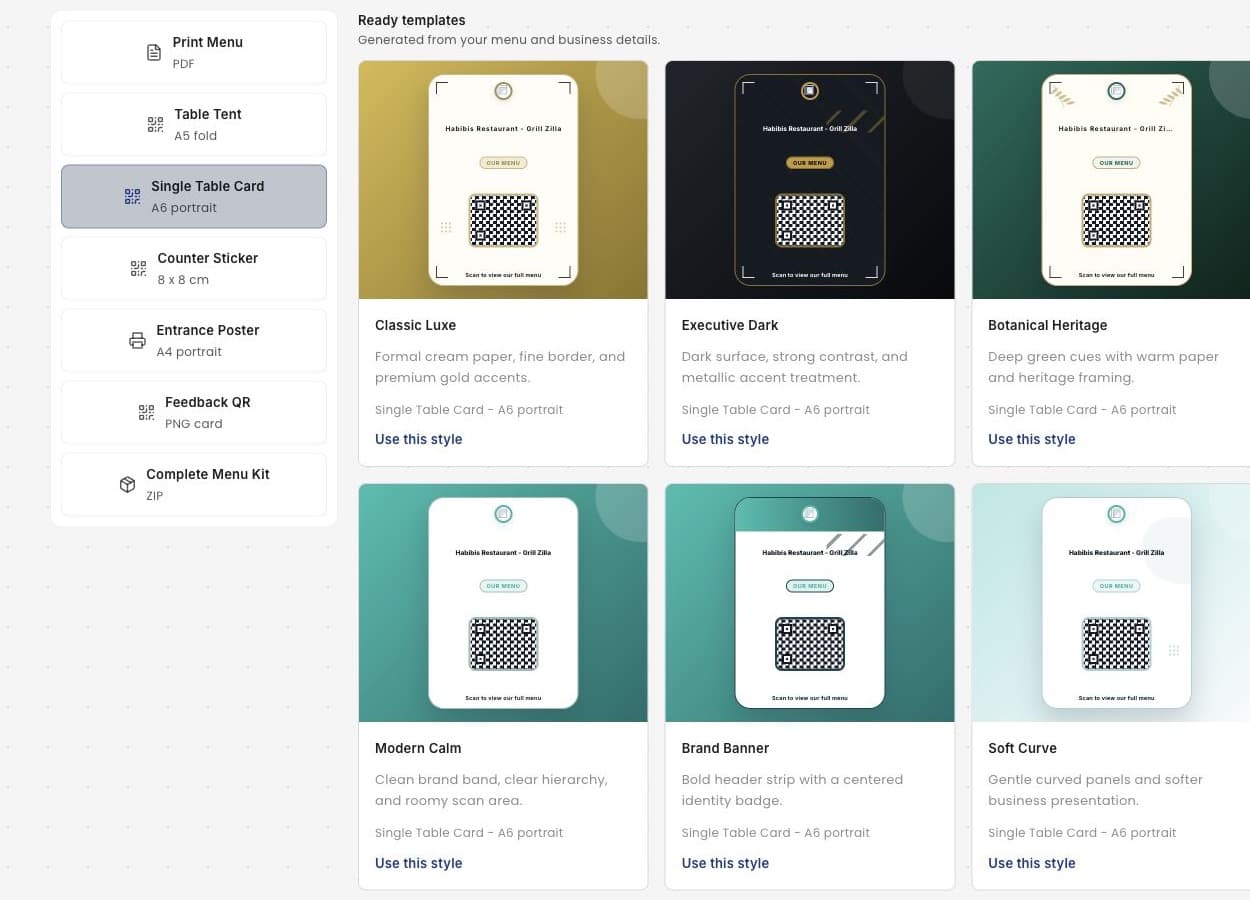
Template list

Finished choices before customization

The owner sees practical asset and template choices instead of an empty design surface.

MenuList Assets dashboard showing print asset types and ready templates for a table card
Editor screen

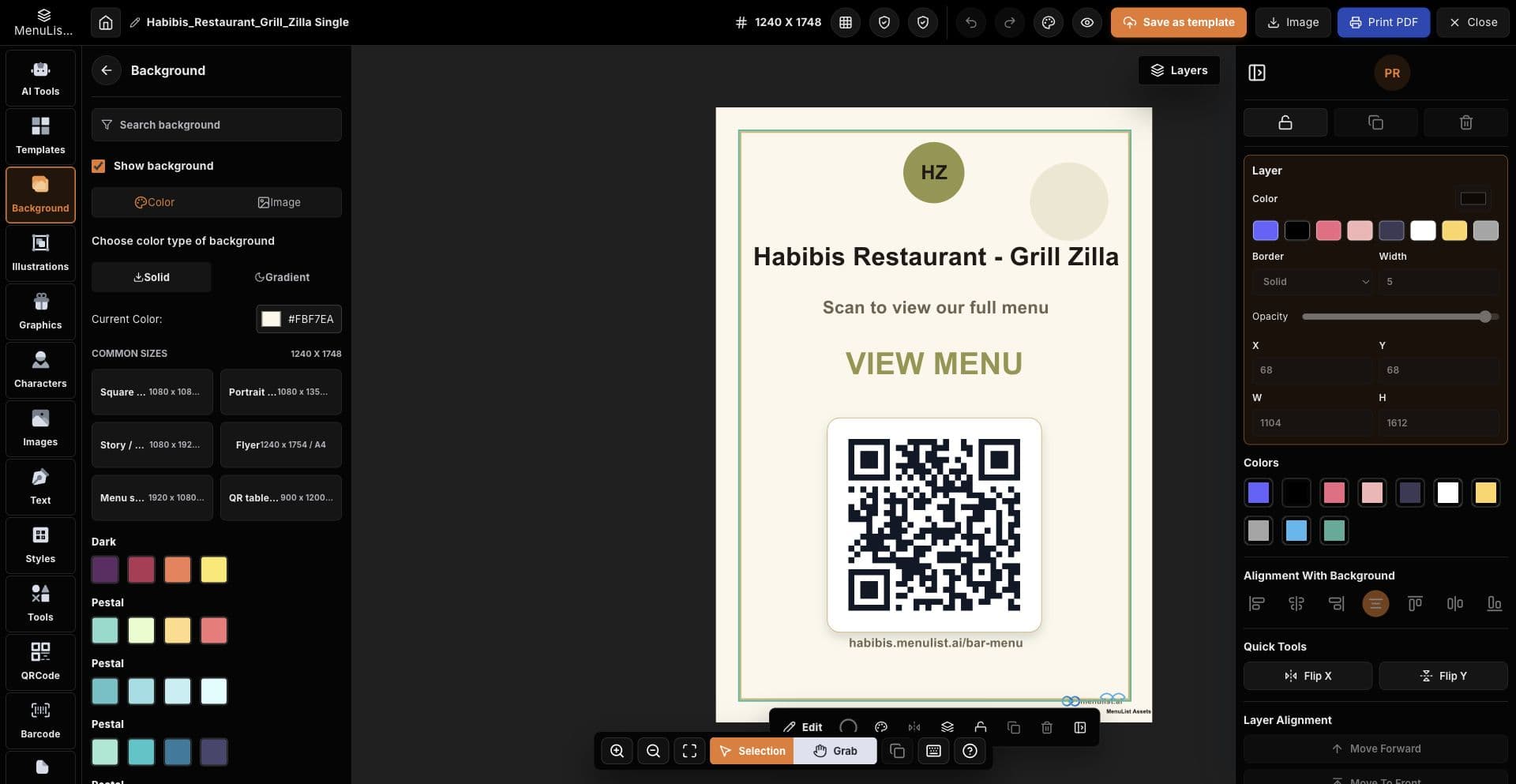
Protected editing for print files

The editor gives owners familiar controls while keeping QR and required placement rules clear.

MenuList print asset editor showing a QR table card template with export buttons and editing panels

Folded capabilities

Templates, editor, brand, and placement belong in Assets.

Brand & Look and Menu Presence ideas are strongest when attached to real files owners can choose, customize, preview, download, print, and place.

Recognizable business materials

Customers should see the same business identity on QR cards, stickers, posters, PDFs, and shared images.

Brand colorLogo or initialsShort link

A practical rollout path

Presence guidance belongs where owners are deciding what to print, hand to a printer, place in-store, or share online.

Template listPrint handoffReprint guidance

Owner confidence

Printed materials should not become another old menu.

The print-ready kit is useful because every file starts from the same approved source, every template keeps the QR scan-safe, and the editor is available when an owner needs a practical adjustment.

QR points back to the current menu

Printed cards, stickers, and posters send customers to the latest published MenuList version instead of a static old copy.

Brand and business details included

Assets can include the business name, branch, logo where available, brand color, QR, and short-link fallback.

Download fresh files after changes

When the menu changes, owners can export fresh files instead of manually redesigning every public material.

Editor when it is useful

Owners start from supported finished templates, then adjust supported copy, placement, and brand details without breaking the QR link.

Deploy the source

Publish once, then place the current menu everywhere.

Start from the menu you already have. MenuList prepares the public source, supported print styles, and rollout files around it.

Upload your menu →Back to all features

Ready when the menu is

Put your menu online from the version you trust.

Start from the menu you already have. MenuList prepares the customer-facing version and keeps the links and materials around it.

Upload your menu →See plans

Owner approval before publishing

The public menu should come from the business, not from old PDFs or scattered screenshots.

One approved source

Customers keep reaching the current version instead of old PDFs, screenshots, or scattered links.

Simple for one location. Ready for many.

Start with one business. Keep the structure ready for locations, governance, and public consistency.

MenuList

One official source for your menu and business details.

MenuList keeps the menu you approve behind the links and materials customers use.

hello@menulist.ai
XInstagramLinkedIn

Product

  • How it works
  • Features
  • Multi-location
  • Pricing

Start

  • Public proof
  • Official Business Page
  • Upload menu

Resources

  • Menu Engineering
  • QR Menu for Restaurants
  • Digital Menu vs PDF
  • Google Business Profile Menu
  • Restaurant Menu SEO
  • AI Search & Menu Discovery
  • Official Menu Source
  • Trust & Security

Legal

  • Privacy Policy
  • Terms of Service
  • Refund Policy

© 2026 MenuList. Built in India.

One public source. Built to be found.